
Most AI-productivity advice tells you to add a tool. The setup that finally worked for me is when I subtracted most of them to simply just use Markdown files in a folder, and the reason it works is boring: the AI reads them before it does anything.
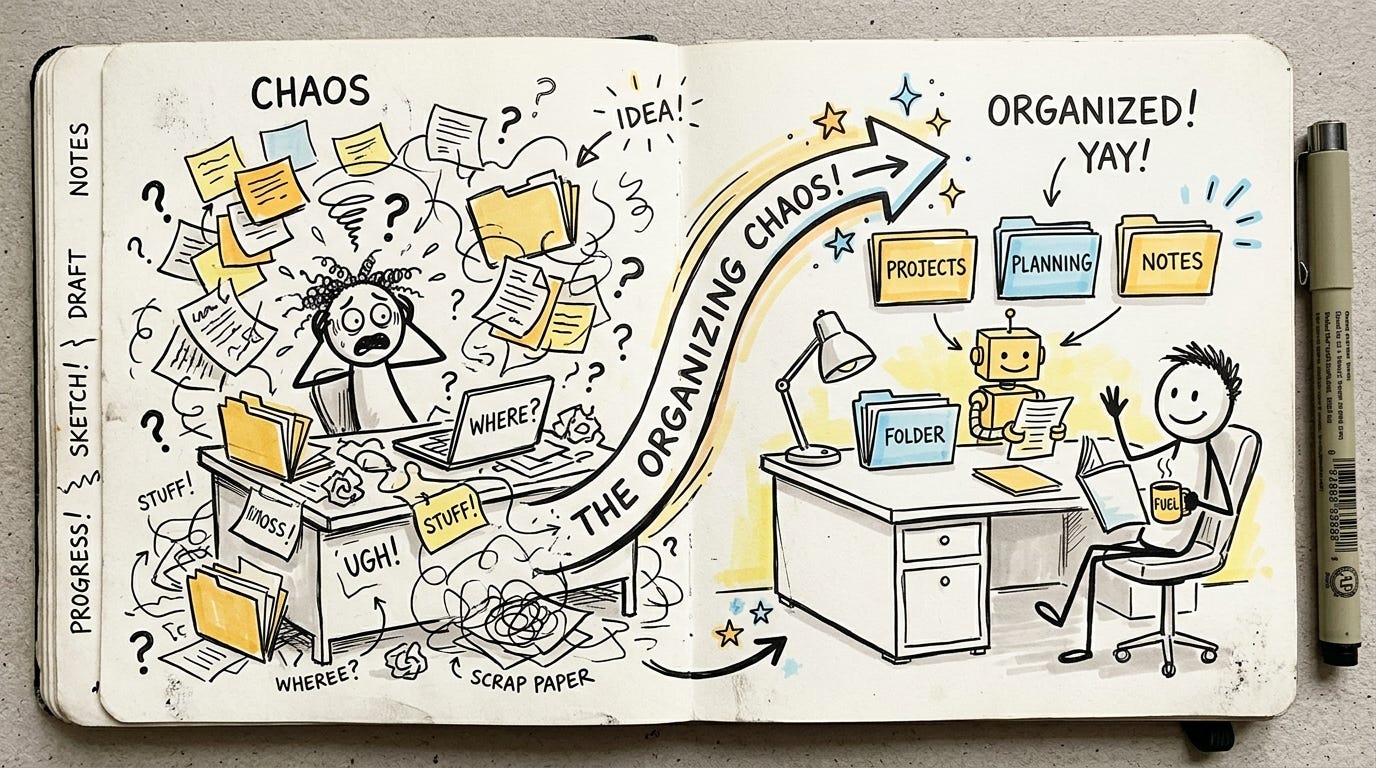
I use Claude Cowork with a project set up per audience, but the idea isn’t tied to any one tool. Any assistant that can read your files at the start of a session works the same way.
Before I get into it, I want to point you to Teresa Torres at producttalk.org. She’s talks about continuous-discovery product and she’s been writing a series called Claude Code Recipes about using these tools without being technical. I recently ran into her article Claude Code: What It Is, How It’s Different, and Why Non-Technical People Should Use It, and it’s the on-ramp I wish I’d had.
What I had before
Earlier this year I set up a real project-management system for my work. It used a tool called Dex, built on the PARA method, which is a way of sorting everything you do into projects, areas, resources, and archives. On paper it was correct. I had my projects laid out, my areas defined, the whole structure.
I abandoned it after three weeks. It asked for upkeep that I was never good at.
Six or more small habits across a day and a week, all of them to remember. Log this, file that. None of it was hard on its own. It was just one more thing every time, and after a few weeks I stopped doing it. The system didn’t fail because it was wrong. It failed because I stopped feeding it.
I wanted a system where I can live with minimal upkeep.
What was actually broken underneath
When I looked at why I kept losing the thread, it wasn’t the tool. It was that my work was organized in a way that confused both me and any AI I tried to bring in.
I was working on four different projects. Two of them were really the same customer told two different ways, one framed for the operators who’d use the product day to day and one framed for the executives who’d buy it. Because those two lived as separate projects, my notes drifted apart. The same decision got made twice, sometimes two different ways.
When I’d open an AI session to help me think, I’d have to explain which version I meant every single time, and half the time it pulled from the wrong one.
This is the part of working with AI that I didn’t see coming. The model is only as good as the context you hand it, and if your own workspace is a mess, you spend the first few minutes of every session re-explaining your world before you get to the actual question. I was doing that several times a day and not noticing what it cost me.
What change gave me the most bang for the buck
I sorted my projects based on who the work is for.
This might sound like a small change. But when you organize by topic, you get overlap, because real work doesn’t respect topic boundaries. The same customer shows up in three folders. When you organize by audience, each project’s notes point at one reader.
The operator project holds the operator’s view. The executive project holds the executive’s view. If a note doesn’t clearly belong to one reader, that’s usually a sign the note is confused, not that I need a fourth folder.
And then I did the part that actually made the AI useful. In each project I keep a context file, and I write down what problem I’m solving here, who I’m making this for, what my audience expects from me, and what a good output looks like to them. So the executive project doesn’t just say “executive.” It says who that executive is, what they care about, what they’ll push back on, what done looks like. It’s project context and audience context in the same place.
When I open the project, the AI is reading that before it reads anything else, so it isn’t guessing who I’m writing for. I already told it.
Here’s what one of those files actually looks like, lightly redacted.
# context.md — Executive project

Who this is for:
  The buyer, not the user. A VP who signs the contract and never
  opens the product. Cares about risk, cost, and the board slide,
  not the feature list.

What they expect from me:
  A clear before/after in business terms. What breaks today, what
  it costs, what changes after we buy. No demos, no UI screenshots.

What "good" looks like to them:
  One page they can forward without editing. A number they trust.
  An answer to "why now" they can repeat in their own words.

--- AI: read these first ---
  Read: brief.md, inbox.md, dashboard.md
  Skip log.md unless I ask about last month.
  Can't find something? Check inbox.md, then ask me.
What’s actually in each project
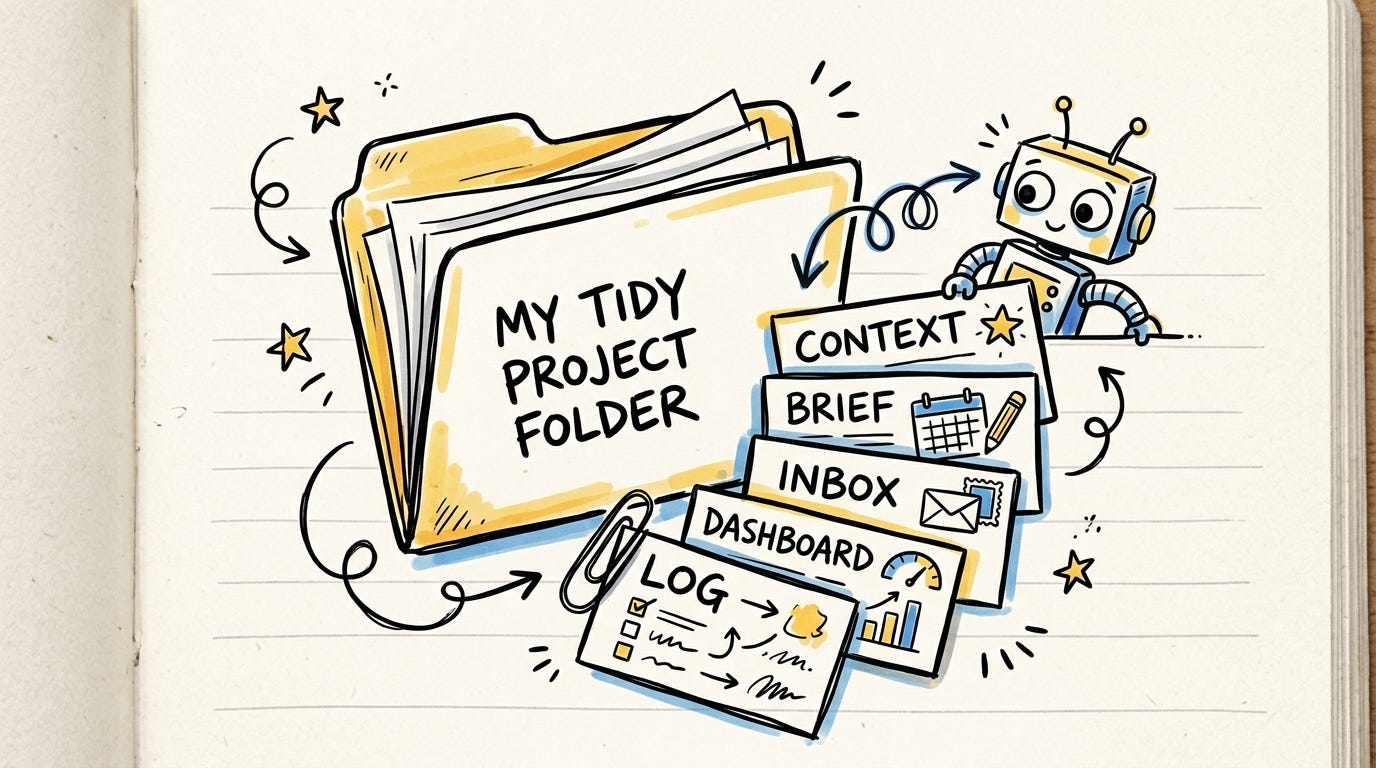
Alongside that context file, each project has four additional working files to maintain the upkeep. I’ve tried keeping more but they go stale, because anything I have to update by hand and don’t have time to do it every day, just rots.
A brief. This week’s priorities and the time I’ve blocked for them. I read it on Monday and it tells me what the week is supposed to be.
An inbox. Every incoming ask, in one plain list. When something lands, it goes here, with a note on which project it belongs to and how urgent it is.
A dashboard. Where each project actually stands right now. I refresh it once a week.
A log. What I shipped, what I learned, what I’d do differently. Newest on top. I add to it on Friday.
That’s it. A context file, four working files, per project.
Teaching the AI what to read
Here’s the part that makes the whole thing work with an AI, and it’s the part most people skip.
That same context file also tells the AI what to read and when.
I simply say in the project’s instructions: read the context file, the brief, and the inbox and dashboard by default. Leave the full history log alone unless I ask about last month, because loading everything every time is slow and it buries what matters. If you can’t find something, here’s where to look next.
So when I open the executive project in Claude Cowork, it reads the right files on its own, before I’ve typed a word. I stop re-explaining. The session starts already knowing who I’m writing for and where things are.
Teresa gets at the same thing in a slightly different way within How to Build AI Workflows with Claude Code, where she turns her writing process into something the tool can run instead of something she has to narrate from scratch each time. You’re not teaching the AI to be smart.
You’re setting your own workspace up so a smart tool knows where it is.
And you don’t need to code for any of this. A folder, some text files, and one file that says what to read first. That’s all it is.
Keeping it current is the AI’s job now
The old system died because I had to feed it by hand, six small habits a day, and I stopped. This one doesn’t ask that of me. Every so often I ask Claude to review all my work across the projects, give me a summary, and then update the one file I care about. Because each project is a single doc, that update is easy to make and easy to check. The upkeep that killed the last system is the part I now hand to the AI.
Why boring wins
Most “AI productivity” posts I read want to sell me a new layer - another app, another integration, another dashboard that promises to think for me. What actually moved the needle was going the other direction. Simply maintain a few Markdown files, all of it in plain text I can read and edit anywhere, none of it locked inside a tool I have to remember to open. I now use the AI to maintain the upkeep of my project status instead of carrying it myself.
The AI part is almost an afterthought once the workspace is clean. It reads the files first, so it knows what I know and who I’m writing for. I spent a long time thinking the hard part was getting the AI to be clever. It wasn’t. The hard part was getting my own desk organized enough that a clever tool could actually use it.
If you want the non-technical on-ramp to the tool itself, start with Teresa’s Claude Code series. Then go clean up one folder. Start there.